


Signova - User Manual
Learn how to install and configure the Signova automated trading system

Signova
Prefer video? Watch this complete video tutorial covering everything in this user manual:
Intro
Signova is our ready-to-use automated trading system (Expert Advisor) built to the highest standards. Think of it as your digital investment manager: it watches the markets, adapts to changing conditions, and manages risk automatically. Just like a professional advisor, Signova needs very little from you. Simply adjust a few basic settings (or use the defaults), and you’re ready to go.
Get Your Demo Account
Before installing Signova, you’ll need a demo account from one of our supported brokers. A demo account is completely free and allows you to test Signova risk-free with virtual money. This is the best way to get familiar with the system before going live.
Why a demo account first?
- Test Signova without risking real money
- Learn how the system works in real market conditions
- Verify broker compatibility and execution speed
- Fine-tune your settings before live trading
Which account type should I select?
For optimal performance, please open an account with the following specifications:
- A low-spread account type (e.g. on IC Markets this is called “Raw Spread”)
- Maximum leverage should not exceed 1:1000
- EUR or USD as the account currency
Which broker should I choose?
Broker selection is critical for automated trading success. Signova works exclusively with carefully tested brokers that offer tight spreads, reliable servers, and fast execution. These factors directly impact your system’s performance.
We recommend starting with the broker highlighted for your region. Once you’re comfortable with how Signova performs on the demo account, you can switch to live trading.
Setup MetaTrader Platform
After opening your demo account with a broker, you need to install and configure MetaTrader before using Signova.
Download MetaTrader
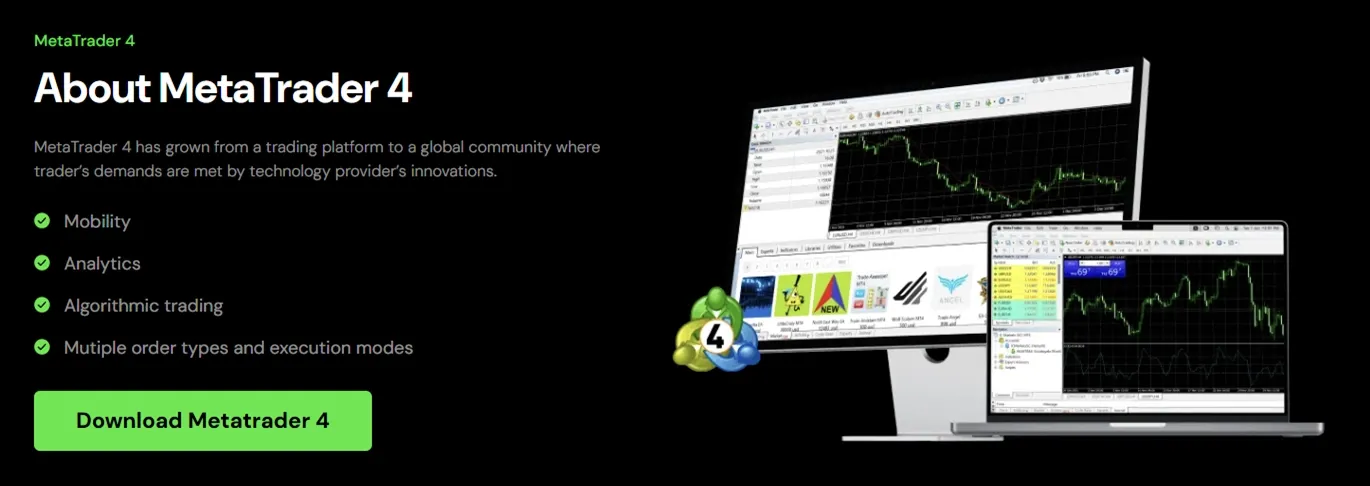
- Visit your broker’s website and find the MetaTrader download section. Most brokers offer both MetaTrader 4 (MT4) and MetaTrader 5 (MT5). Here’s how it looks with IC Markets:
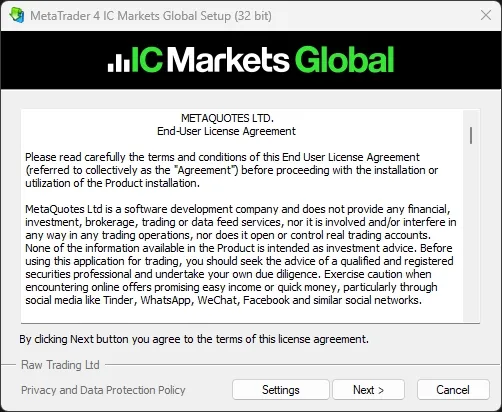
- Download and install MetaTrader following your broker’s installation instructions.
Login to Your Demo Account
Once MetaTrader is installed:
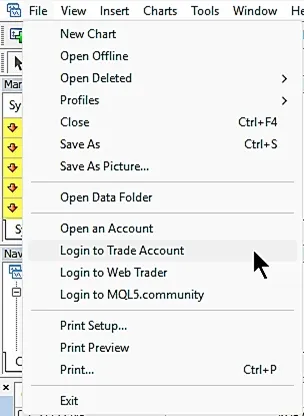
- Open MetaTrader for the first time. A login window should appear automatically. If the login window doesn’t appear automatically, go to File → Login to Trade Account in MetaTrader’s menu.
- Enter your login credentials that you received from your broker when you created your demo account. These are usually sent in a confirmation email. Your credentials typically include:
- Account number (Login)
- Password
- Server
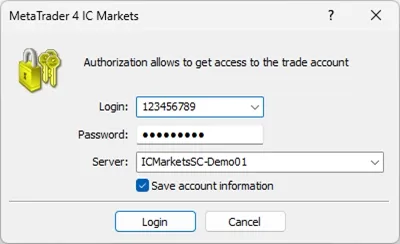
- Click Login to connect to your demo account.
Once successfully logged in, you’ll see your account balance, currency pairs in the Market Watch, and price charts.
You’re now ready to install Signova.
Download Signova
You can download Signova with one of the buttons provided below.
Your browser might show a security warning about EXE files. Just click to keep the file.
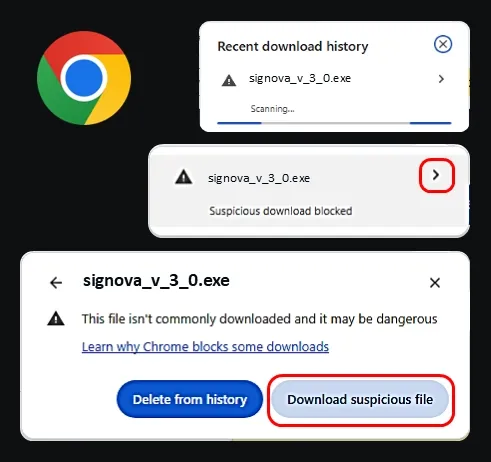
Installation with EXE Installer
Once downloaded, double-click the setup file to begin. Windows may display a security warning. This is normal. Simply click More info, then Run anyway to continue.
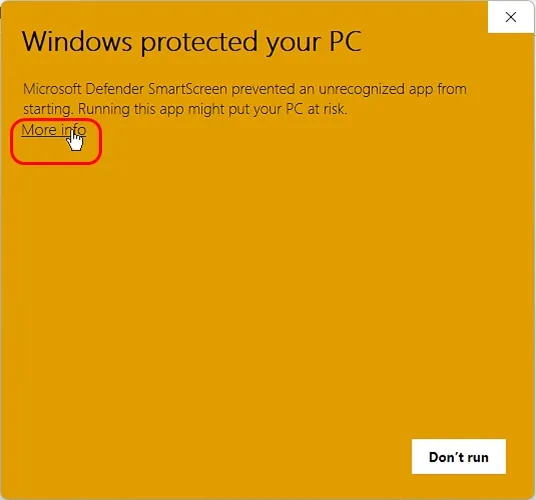
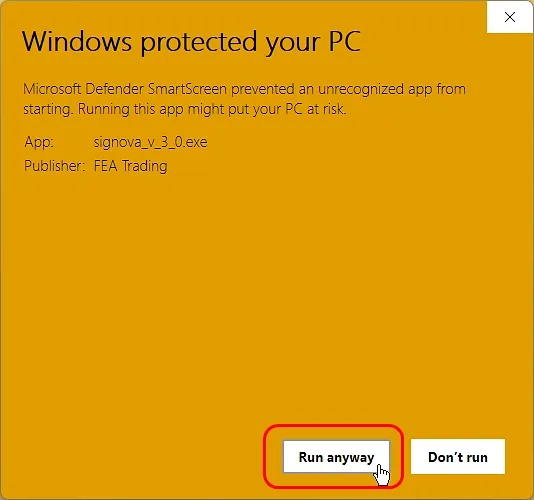
We’re working on resolving this, but for now, follow the steps shown below.
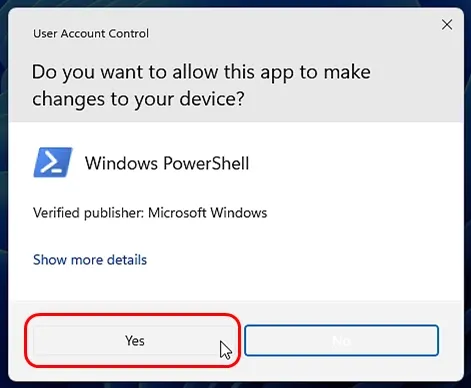
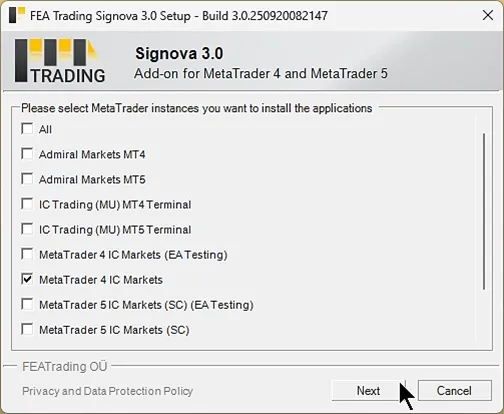
Next, the installer will ask which MetaTrader platform you’d like to use with Signova.
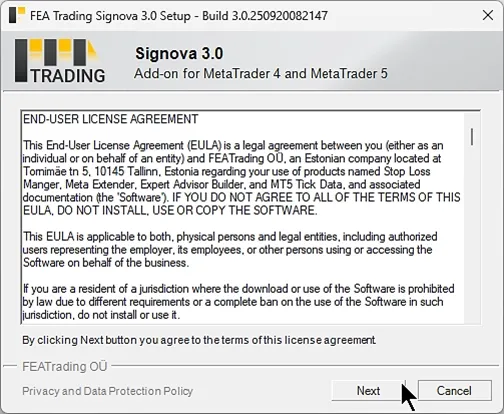
Select one or more MetaTrader installations and complete the setup.
Installation with ZIP File
If you downloaded the ZIP file, follow these steps to install Signova manually:
Extract the ZIP file to a temporary location on your computer.
Open MetaTrader (MT4 or MT5) that you want to use with Signova.
Open the Data Folder by clicking File → Open Data Folder in MetaTrader’s menu.
Navigate to the MQL folder:
- For MT4: Open
MQL4 → Experts - For MT5: Open
MQL5 → Experts
- For MT4: Open
Copy the Signova files from the extracted ZIP folder and drag and drop the
.ex4(MT4) or.ex5(MT5) files into the Experts folder.Refresh the Navigator by right-clicking on Expert Advisors in the Navigator panel and selecting Refresh, or simply restart MetaTrader.
You should now see Signova in the Navigator panel under Expert Advisors.
Start and Configure Signova
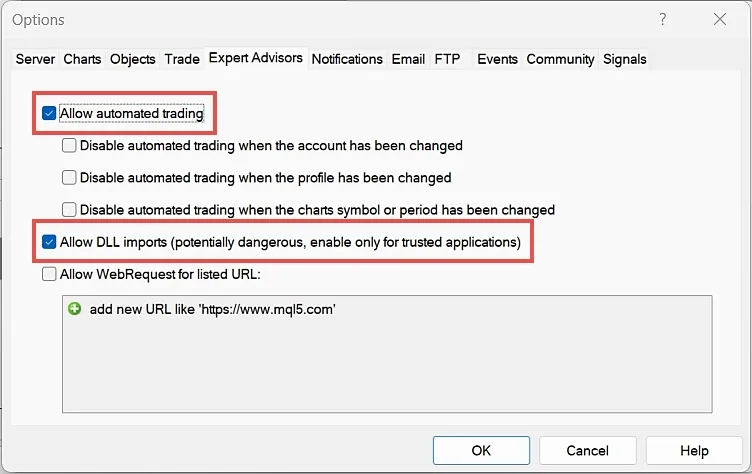
Signova connects to a news server to stay updated on economic events. To enable this functionality, open MetaTrader and navigate to the Options menu.
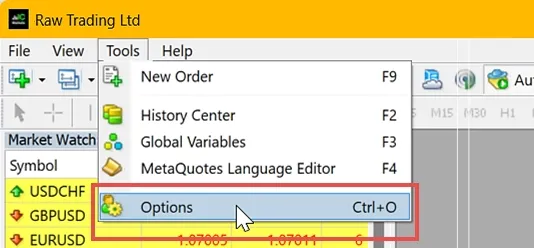
Click on the Expert Advisors tab and ensure that both Allow automated trading and Allow DLL imports are enabled.
In the MetaTrader Navigator panel under Expert Advisors, you’ll find Signova:
- EXE Installer: Located under FEA Trading - MT4/MT5 - Signova
- ZIP File: Located at the location where you copied the files
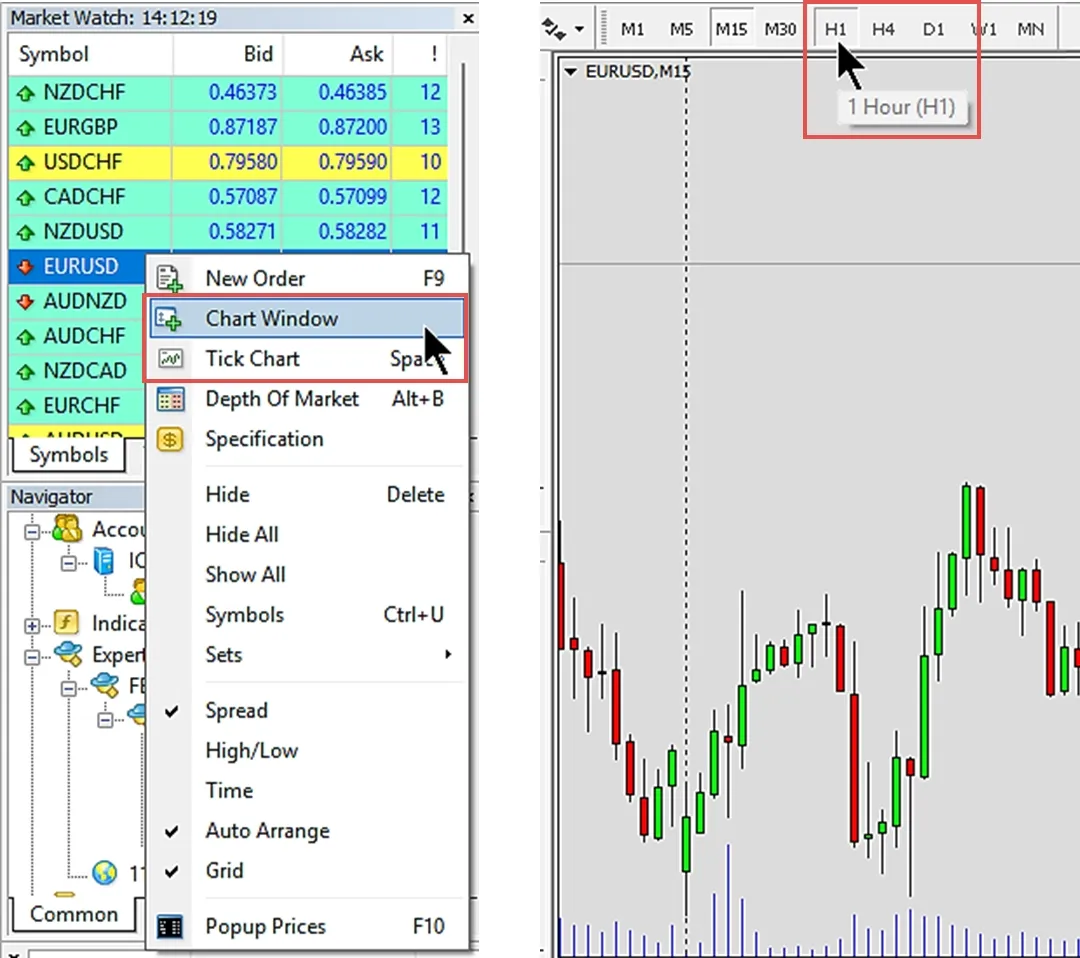
Like any Expert Advisor, Signova needs to run on a chart. To open a chart, right-click any symbol in the market watch and select Chart Window.
Recommended: Use EURUSD with H1 timeframe.
Note: Signova only needs to be started on a single symbol. Although it is attached to just one chart, it opens trades across all symbols it is actively enabled to trade. Therefore, never run multiple instances of Signova, as this would increase the exposed risk by opening every trade multiple times.
Choosing Your Signova Variant
The following Signova variants are available, each designed for different account sizes with different performance characteristics:
Signova Light (€500 minimum equity)
- 29% average yearly returns
- 14% maximum drawdown
- Trades 4 forex symbols
Signova Standard (€2,500 minimum equity)
- 121% average yearly returns
- 13% maximum drawdown
- Trades 8 forex symbols
Signova Premium (€7,500 minimum equity)
- Highest performance potential
- Trades 16+ forex symbols
Choose the variant that matches your account balance. To start, simply double-click the appropriate Signova variant or drag and drop it onto your chart.
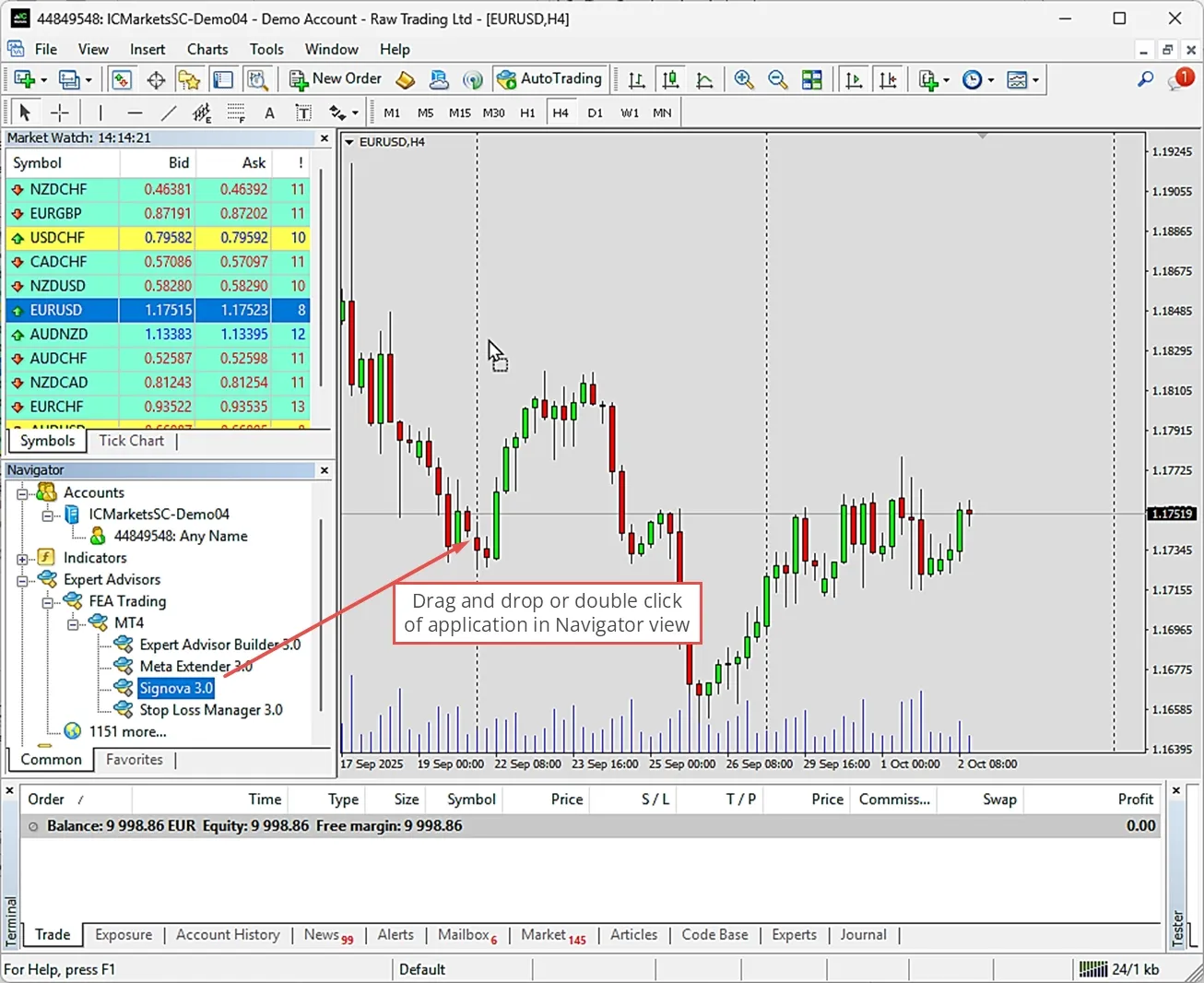
Signova works on both live charts and in the strategy tester.
Input Settings
When starting Signova, a welcome dialog appears with the Inputs tab where you can review the settings.
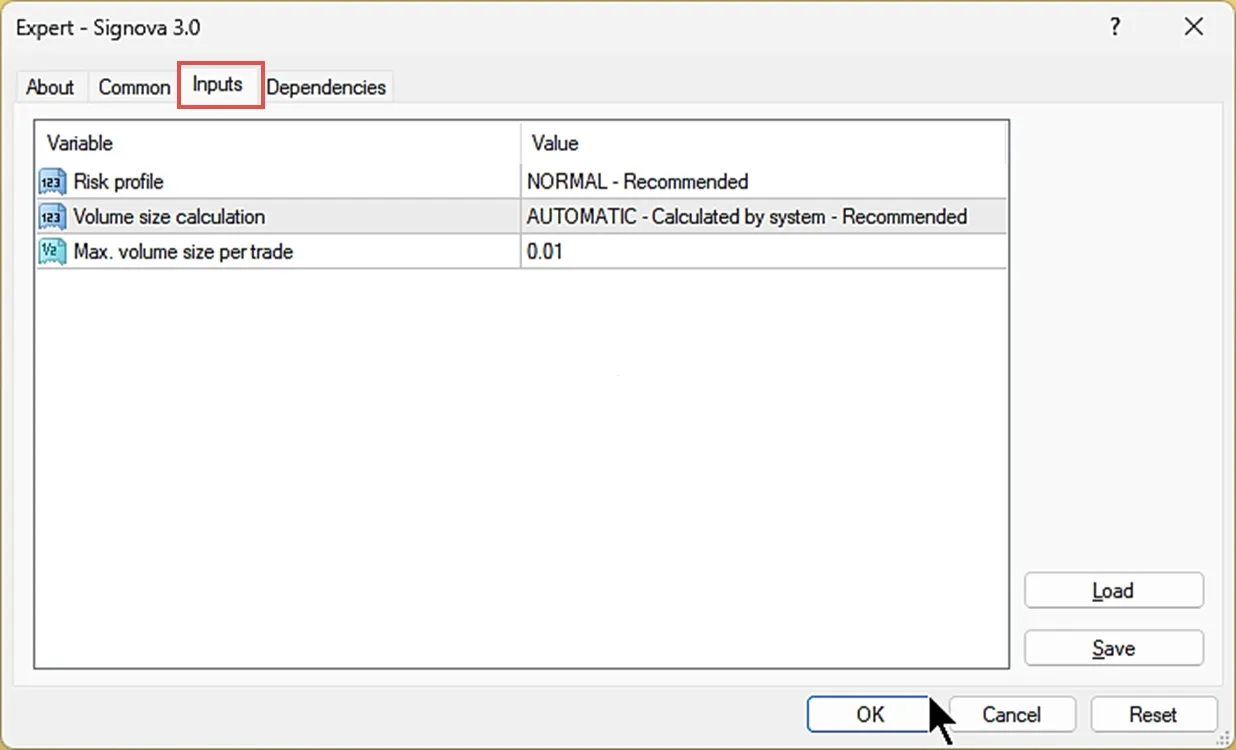
Important: The default settings are optimized for best performance. You don’t need to change anything to get started. However, if you prefer to adjust the risk level or volume calculation to match your personal trading preferences, the options below explain what each setting does.
Risk Profile
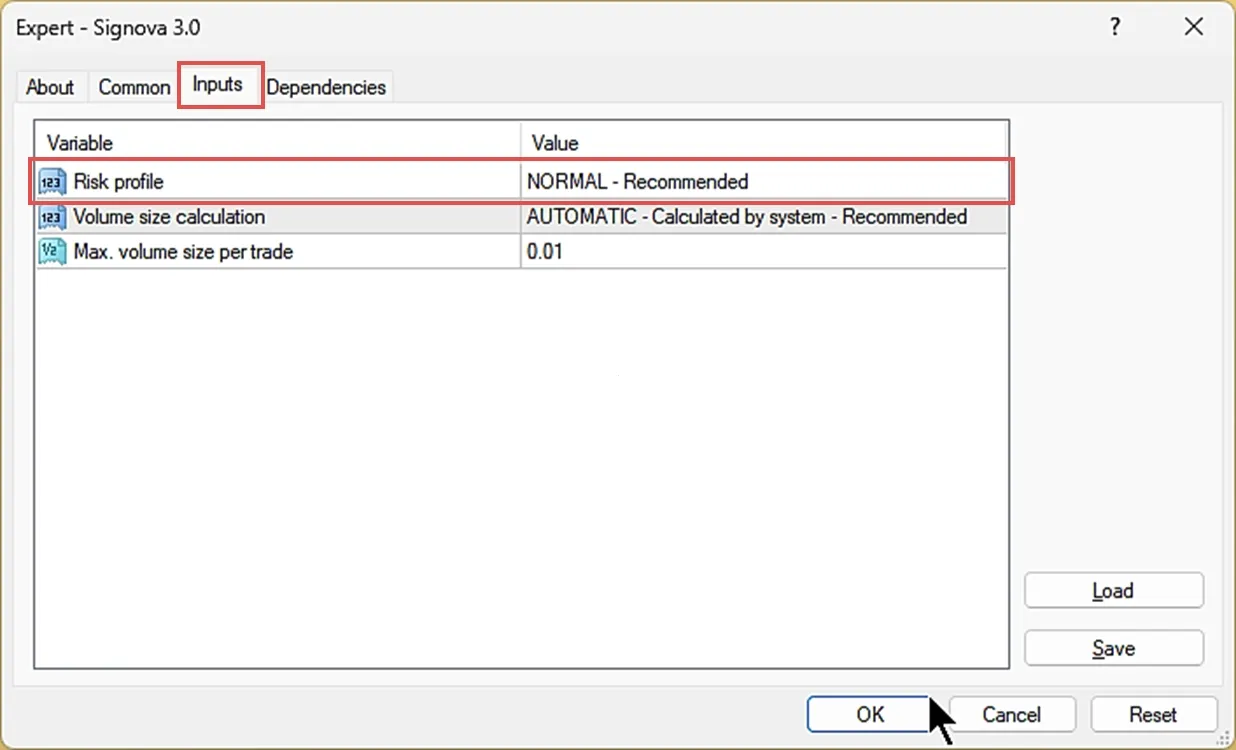
The risk profile parameter adjusts the trade volume per position. The available risk levels are:
- LOWEST: Minimum volume
- LOW: Reduced volume (Standard ÷ 3)
- MODERATE: Moderate volume (Standard ÷ 2)
- NORMAL: Standard volume (Recommended)
- HIGH: Increased volume (Standard × 2)
- EXTREME: Maximum volume (Standard × 3)
Note: Actual lot sizes vary by symbol and strategy. The multipliers shown represent relative risk levels compared to the standard volume.
Volume Size Calculation
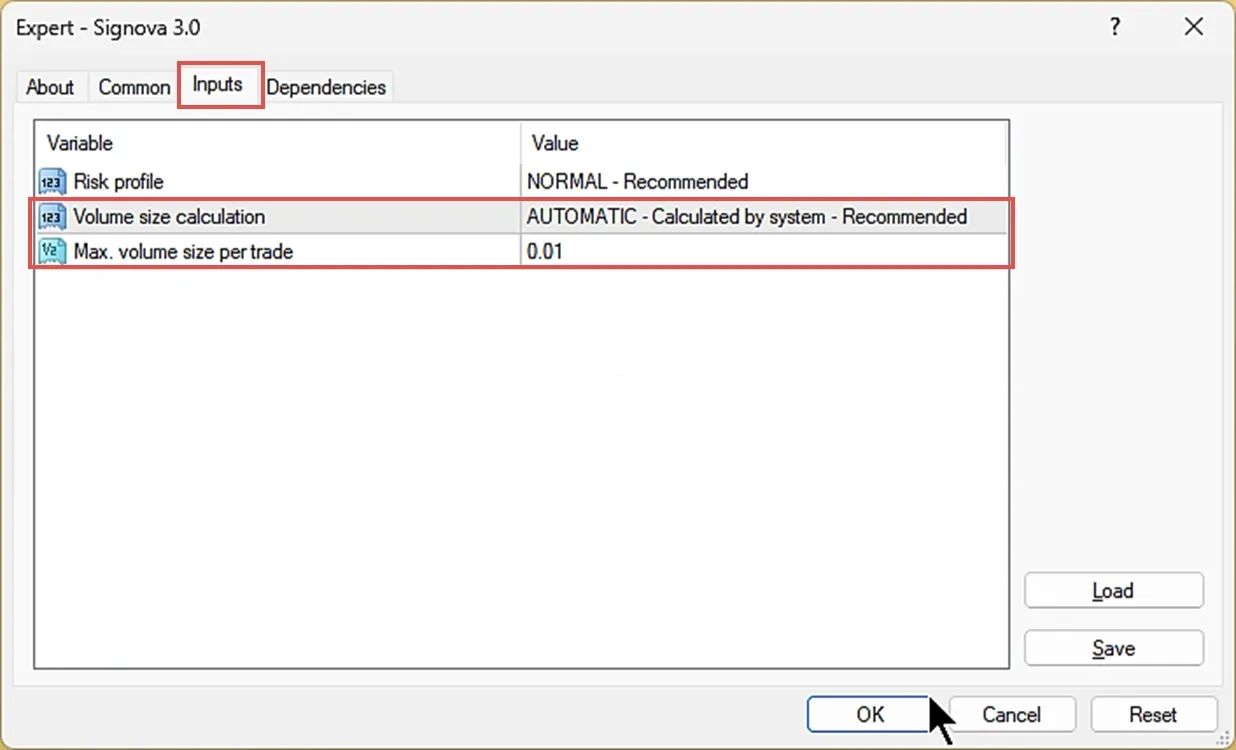
Volume size calculation offers two options:
- AUTOMATIC: Calculates volume based on risk management, money management, and current market conditions (recommended)
- LIMITED: Calculates volume the same as automatic, but caps it at the maximum defined in “Max. volume size per trade”
If you want to start cautiously, you can use LIMITED mode with a small volume cap to evaluate Signova’s performance. Once you’re confident, switch to AUTOMATIC mode for optimal results. In automatic mode, Signova follows a maximum drawdown rule while maximizing performance, ensuring your account equity is always properly managed.
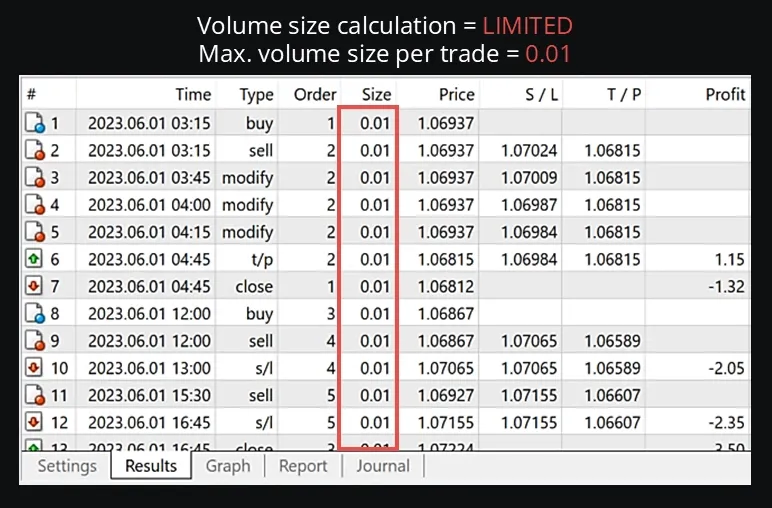
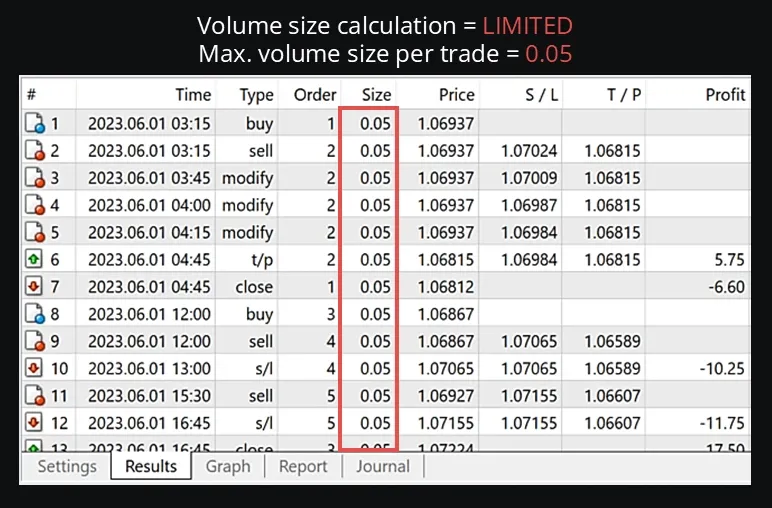
With LIMITED selected, trades won’t exceed the Max. volume size per trade value. The examples below show the effect of caps like 0.01 or 0.05 lots. Note that if Signova’s logic determines a smaller position is appropriate, it will use that smaller size. This flexibility is essential for proper risk management.
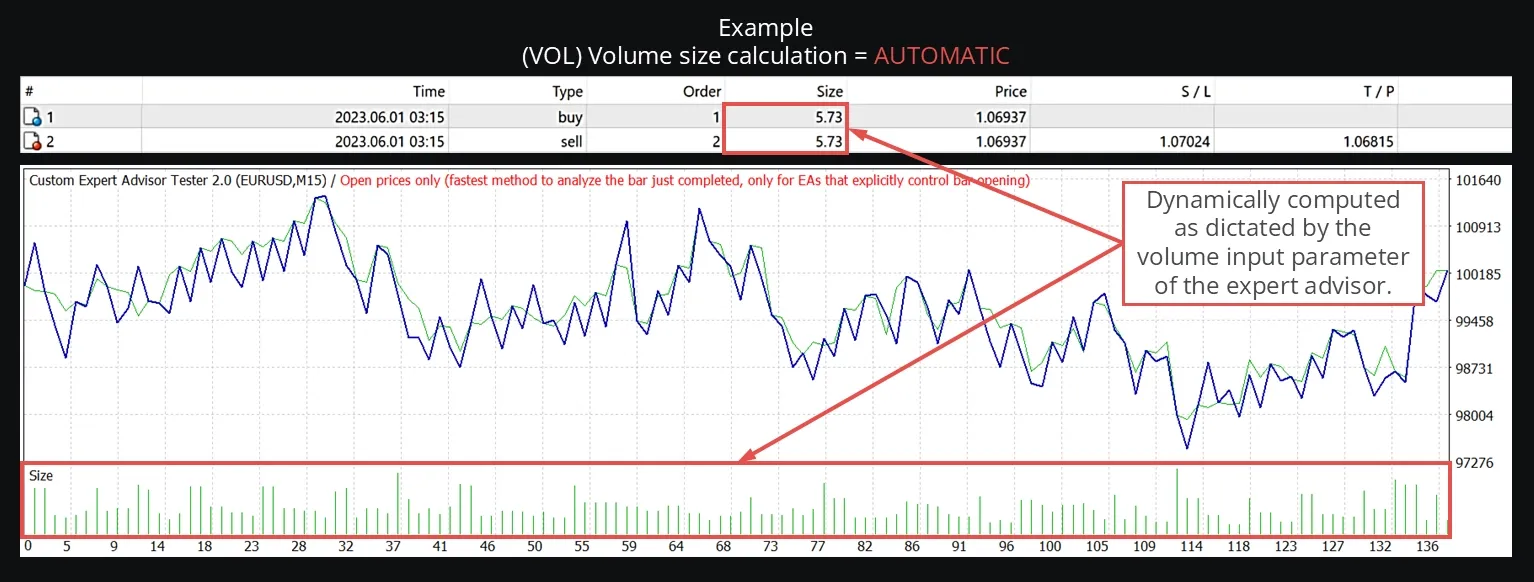
With AUTOMATIC selected, volume sizes adjust dynamically based on market conditions and risk management calculations. This allows Signova to perform optimal risk and money management.
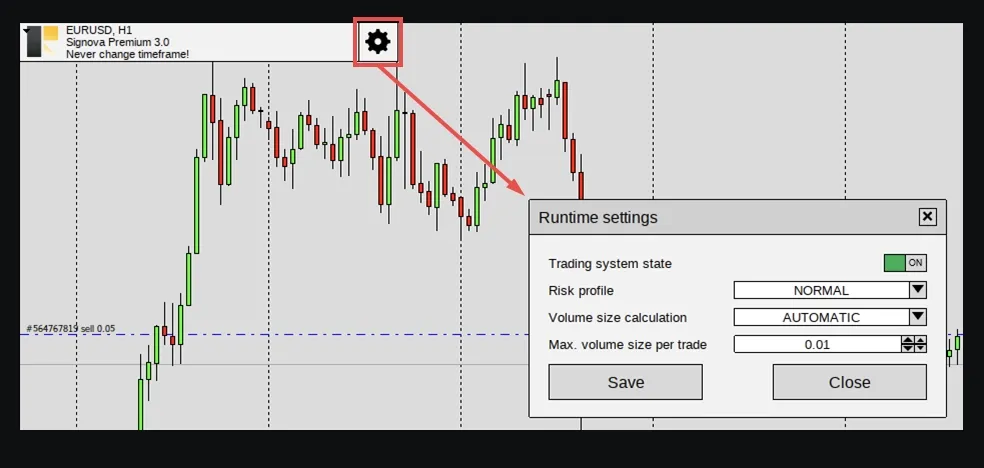
Runtime settings
The above explained volume size settings, along with a general on/off switch, are also accessible while Signova is running. There is generally no need to restart Signova when adjusting the risk settings.
Start Live Trading
Once you’re comfortable with Signova’s performance on your demo account, you can transition to live trading. Before you can trade with real money, you need to register for a live trading account with our recommended broker for your region:

Verify Your Account and Fund It
After registration, you’ll need to:
Get Verified: Complete your broker’s verification process. This typically involves submitting identification documents (passport or ID card) and proof of address. Verification usually takes 1-3 business days.
Create a Live Account: Once verified, create a live trading account through your broker’s dashboard. Choose the same account type (MT4 or MT5) that you’ve been testing with.
Fund Your Account: Deposit funds into your live account using your broker’s available payment methods (bank transfer, credit card, e-wallet, etc.). The minimum required funding depends on your Signova variant:
- Signova Light: €500 minimum
- Signova Standard: €2,500 minimum
- Signova Premium: €7,500 minimum
These minimums are required to ensure proper risk management and prevent excessive account strain during drawdowns.
Request Live Access for Signova
After funding your account, you need to request live access to Signova. This connects your FEA Trading account with your live broker account, allowing you to use Signova for real trading.
Complete the registration process by entering your broker account details. Once approved, you’ll receive access to download and activate Signova on your live trading account.
Login to MetaTrader with Your Live Account
The process from here is identical to what you’ve been doing with your demo account:
Open MetaTrader (MT4 or MT5).
Go to File → Login to Trade Account in MetaTrader’s menu.
Enter your live account credentials that you received from your broker:
- Account number (Login)
- Password
- Server
Click Login to connect to your live account.
Start Signova by dragging it onto a chart (EURUSD H1 recommended), just as you did with your demo account.
Virtual Private Server (VPS)
Watch this video tutorial that guides you through the complete VPS configuration process for automated trading:
Running Signova on your local computer works, but has drawbacks. System updates, power outages, or internet connection issues can interrupt trading and potentially cause losses.
A Virtual Private Server (VPS) is a remote computer that runs 24/7 in a professional data center. It keeps Signova running continuously without requiring your computer to stay on. VPS providers offer stable power, fast internet, and professional infrastructure for reliable automated trading.
You can access your VPS from anywhere using remote desktop applications like Google Remote Desktop, available on Windows, iOS, or Android. This lets you monitor and manage MetaTrader from any device.
We recommend Contabo for VPS hosting. They offer great performance, affordable pricing, and reliable infrastructure that’s perfect for running automated trading systems 24/7.
